
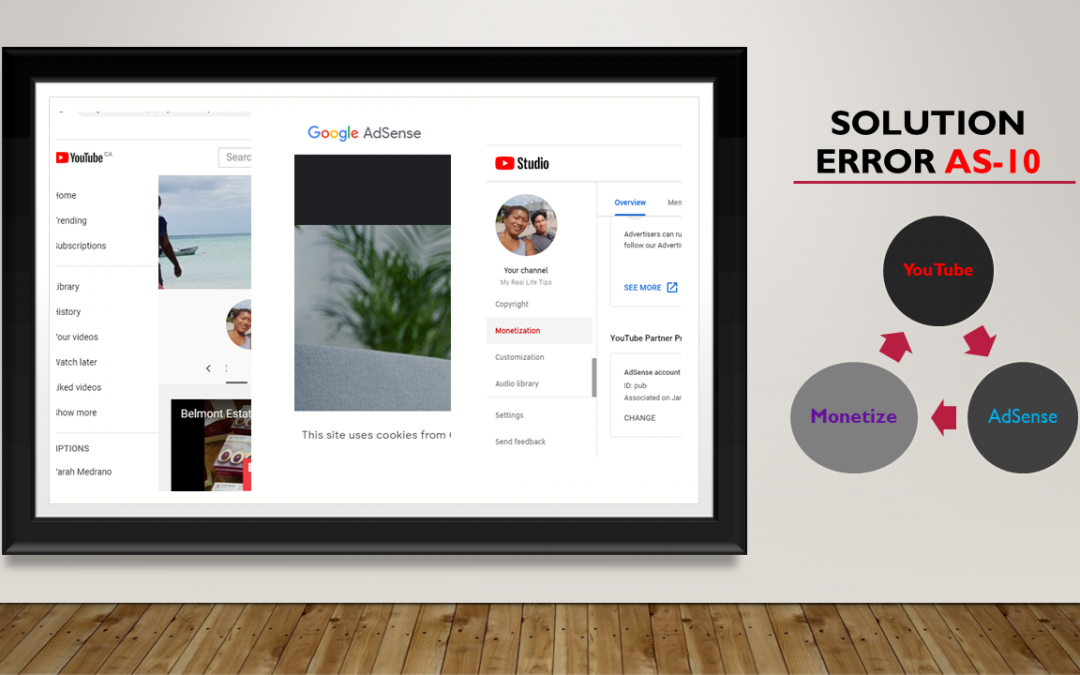
Are you looking for a solution to YouTube Error AS-10 when you try to associate your YouTube Channel to your Existing Google AdSense Account? Look no more. Below is the step by step on how to fix this “Oops something went wrong. Error AS-10“.

YouTube Email Notification To Apply for Monetization:
Once you have reached 1K subscribers and 4000 watch hours within the 12 months, YouTube will send you an email to inform you that you can apply for monteization. All you need to do is go to Monetization section of YouTube Studio and follow the steps there.
- Click Start on “Review Partner Program terms” card.
- After you have signed the term, you will see a “Done” beside the card.
- You will have to either create a new Google AdSense account or link it to your Existing Google AdSense account.
- Then YouTube will review your monetization application. This process may take up to 30 days.
Common Issue to YouTube Error AS-10:
YouTube Channel is linked to a New AdSense account. However, based on the policy, you can ONLY have one Google AdSense account under the same payee name as per AdSense’s Terms and Conditions. Therefore, it is important that you DO NOT have Duplicate AdSense account with payment setup else your YouTube Channel will not be approved and monetization will be turned off.
YouTube Monetization Approval Email:
YouTube then reviews our application for monetization. You will receive a ‘Congratulations‘ email once your application is approved.
At this time you need to read up on Google AdSense and ensure that you only have 1 AdSense account. Google support link has a good instruction on how to set up.
If you have a blog website that you already opened a Google AdSense account with in the past and now your YouTube Channel is approved for monetization, you have to make sure to link YTC to your existing AdSense account.
When you use your Google AdSense Gmail account to login and link your YouTube Channel to AdSense, you will get this Error Message “Something Went Wrong. Error AS-10”. Follow the following step by step instruction if you get Error Message AS-10.
Solution to YouTube Error AS-10 – Cannot connect YouTube account to my Existing Adsense Account:
- Login to Your YouTube Channel and go to “YouTube Studio”
- Go to “AdSense account” section: click on “CHANGE”
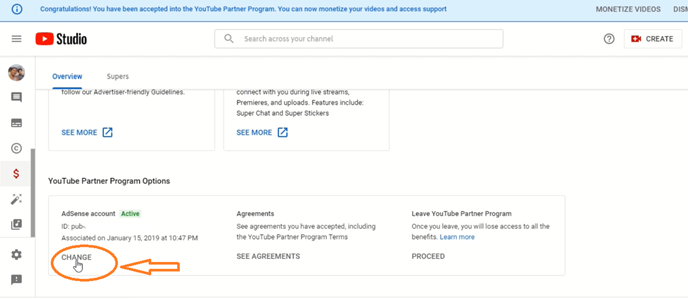
- A prompt will come up to ask you to “Verify it’s you”. Click on “PROCEED”

- Then it brings you to a Google Gmail screen. Enter/Select your YouTube Google Account (i.e. YTC gmail account different from your existing Adsense Google Account) and enter your password. Hit “NEXT”.

FYI: The reason why ERROR AS-10 appears is because one entered an Existing Adsense Google Account instead of YTC google account first. You MUST enter your YouTube Gmail Account!
2-Step Google Email Verification
- Next, click “Next” and Verify It’s You by following Google’s Verification Steps. If you setup your verification steps to use your mobile phone, then Google will prompt your Mobile Phone. All you have to do is click on ‘Yes’
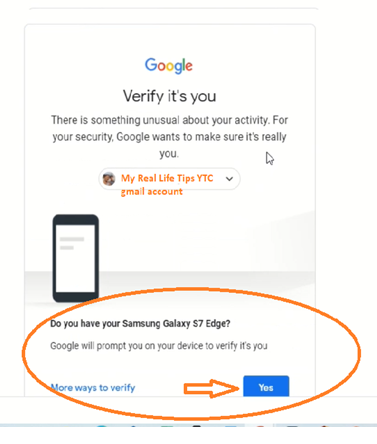
Google Verify Its You 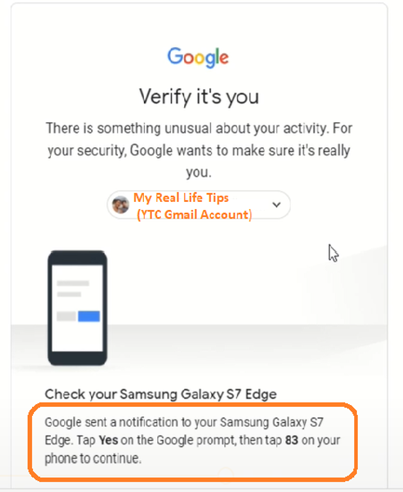
Verification
- Check your mobile phone (if you use this verification method for your gmail account.)
- You will see Google’s notification on your phone as per below. You need to click “Yes“
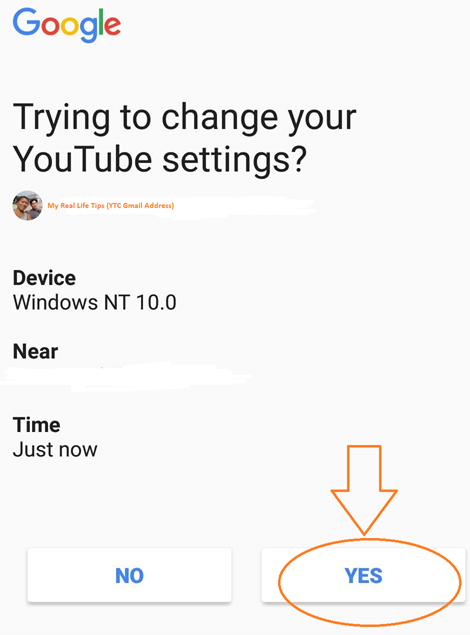
- Then 3 Numbers will appear on your Mobile phone. One of the number is the SAME Number as what is showing up on your Laptop (For Example #83).
- Select the SAME Number on your mobile phone as the # on your Laptop.
- Then it will direct you to the following screen. Select “CONTINUE”
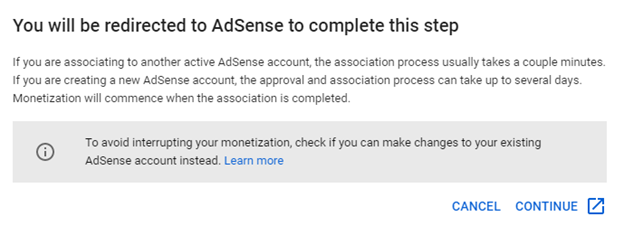
- Next, it will direct you to Google screen to log in. Make sure to log in with your EXISTING ADSENSE Gmail Account this time.
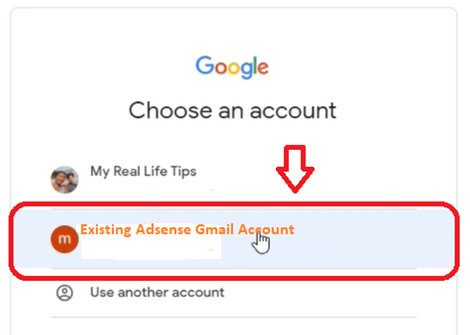
- Once you logged into your Existing Adsense Gmail account, it will redirect you to Google AdSense Screen as per below:
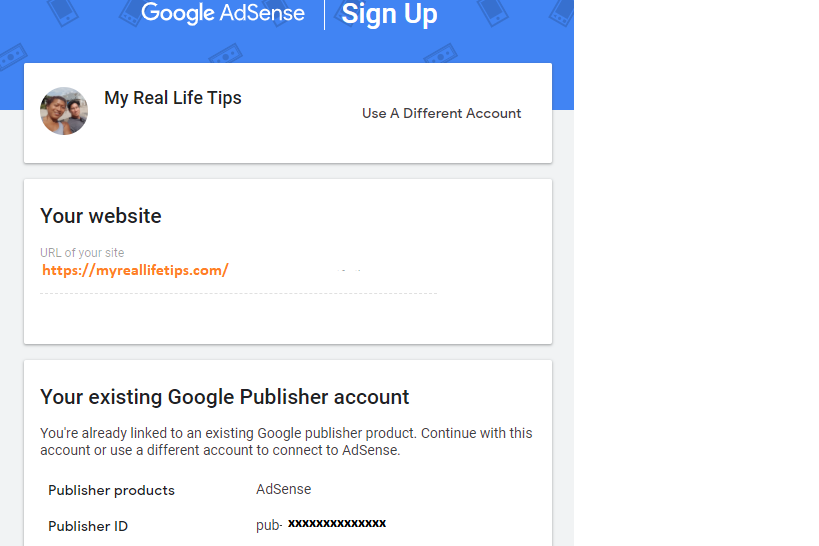
Google AdSense Account 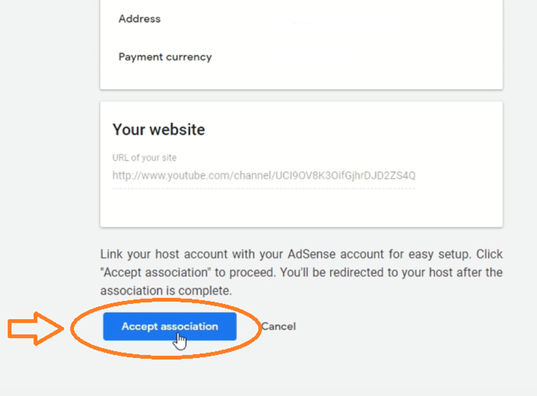
AdSense- Accept Association to YouTube
- Scroll to the bottom, Click on “Accept Association” to proceed
- This will link Your YouTube account with your Existing AdSense account for easy setup.
- Once you completed this AdSense Association step, you will be redirected back to YoutTube Studio.
Voila! Your YouTube Account is now linked to your EXISTING Google AdSense Account. Now you can start Monetization on your YouTube Channel.
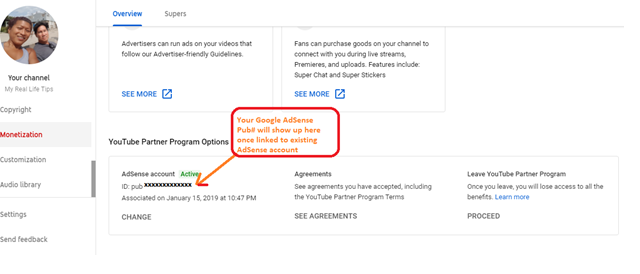
Tip for to Avoid YouTube Error AS-10:
- Make sure to set up “Enable 2-Step Verification for your Google Account“. That is, you will protect your account with both your password and an additional device. Not having 2-Step Verification may cause a delay in your YouTube application review, so this step is highly recommended.
- Others on the YT forum says you have to use different browser. I tried this method at first but it did not work for me. This may help you.
- Some others say it may be ‘ad blocker’. But this was not the issue I had. I was able to associate YouTube with existing AdSense with the above step-by-step instruction.
Reminder to “Stay active to keep making money“.
Thank YOU for Watching!
Please SUBSCRIBE to “My Real Life Tips” YouTube Channel for more “HOW TO” Videos